Filed under: Uncategorized — ShibaShake @ 12:59 pm

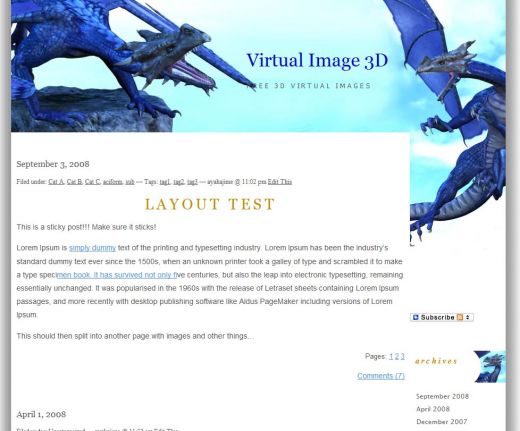
You can include new CSS styles to your WordPress child theme by just adding them to your new style.css file. For example, in the blog below, there is a bio section at the top with a profile picture.

We created this bio section by entering the following code into a Text widget, and placing that Text widget into the header widget area within the parent Shiba WordPress theme.

<div id="bio-picture">
<img src="bio1.jpg"  width="150" height = "168"/>
</div>
I was born at DAZ Studio. They created me with utmost care and that is
why I am the hottie that you see today. My interests include posing, trying
out cute outfits, and more posing.


Bio section for my WordPress blog using a Text widget.

You can center the bio picture by just adding a new bio-picture style to your style.css file. Copy the code below and add it after the @import url statement in your style.css file.

style.css

#bio-picture {
	margin-top:10px;
	margin-bottom:10px;
	width:150px;
	margin-left:auto;
	margin-right:auto;
}

width:150px; defines the width of the picture. Then the margin-left and margin-right statements center the picture.
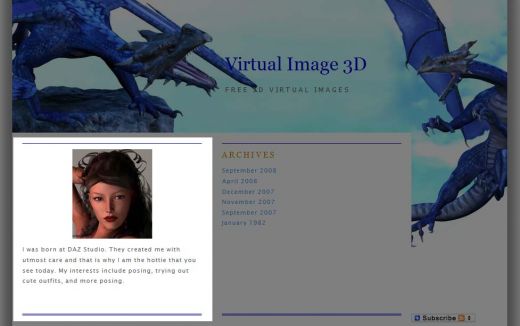


Screen-shot of my WordPress blog bio after centering the bio picture.

Alternatively, you can just float the bio-picture to the left and let the text wrap around it.

style.css

#bio-picture {
	margin: 10px;
	float:left;
}


Screen-shot of my WordPress blog bio after floating the bio picture to the left.

I can update my parent theme with new images, and new colors, and the bio-picture style that I have defined in my child theme easily transfers over with no additional effort from me.


Scree-shot of my blog after a parent theme update. The child-theme modifications get transferred seamlessly.

You can define as many new static styles as you want. You can also override existing styles from the parent theme. Just make sure that you define all of your styles after the @import url statement in your style.css file.

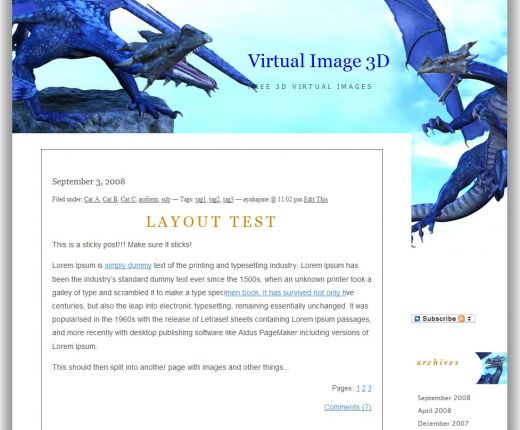
For example, I could redefine the blog content area by removing its borders, and making it expand out to fill all the available space.

#content {
	border: none;
 
	width:730px;
	padding: 0px 10px 0px 10px;
 
}
<a href="http://www.shibashake.com/wordpress-theme/wp-content/uploads/2010/01/child-theme7.jpg" target="_top">child-theme7</a> <a href="http://www.shibashake.com/wordpress-theme/wp-content/uploads/2010/01/child-theme8.jpg" target="_top">child-theme8</a>

<< Previous Stop Play > Next >>


Redefine the blog content area by removing its borders, and making it expand out to fill all the available space.

Using static design styles in your WordPress child themes is a fun first step in learning web design techniques. Using static styles in this way, will allow you to personalize your blog without any need for PHP knowledge. Once you are comfortable with CSS, you can start learning PHP and do even more by creating dynamic styles within your WordPress child theme.

Related Articles

<< Previous Next >>

<a href="http://www.shibashake.com/wordpress-theme/use-wordpress-child-themes-to-create-dynamic-styles" target="_top">Use WordPress Child Themes to Create Dynamic Styles</a>

Use WordPress Child Themes to Create Dynamic Styles

Sometimes, you may want to define design styles that are based on certain blog conditions. For example, you may only want to display your bio on your blog homepage, and not on any of the other pages. There are several ways you can achieve this, including using a dynamic design style. To define dynamic design styles, you need to create a functions.php...

<< Previous Next >>

<a href="http://www.shibashake.com/wordpress-theme/customize-your-wordpress-blog-with-child-themes" target="_top">Customize Your WordPress Blog with Child Themes</a>

Customize Your WordPress Blog with Child Themes

What are WordPress child themes? Child themes are a simple way for you to modify WordPress themes, and keep track of all your changes. With child themes you can make all of the same modifications as you would to the parent theme, but you do all of this in a separate child theme area. This allows you to update the parent theme whenever you want and...

<< Previous Next >>

<a href="http://www.shibashake.com/wordpress-theme/child-wordpress-themes" target="_top">WordPress Child Themes</a>

WordPress Child Themes

Child WordPress themes are a simple way for you to make modifications to any existing WordPress theme. The main advantage of child themes is that it allows you to update the parent theme as often as you want, and still keep all of your theme modifications intact. With child themes, you make all your modifications in a separate area than the parent...

<Playback Stop Play >

RSS feed for comments on this post. TrackBack URL

Leave a Reply

Copyright © 2009 - All Rights Reserved. Powered by WordPress & Theme Shiba by ShibaShake. Privacy Policy
search button search button
rss